
The ambient widget
A desktop or Notification Center widget that shows your Mac’s current behavior at a glance — calm when all is well, and the active anomaly when there is one.
What the widget shows
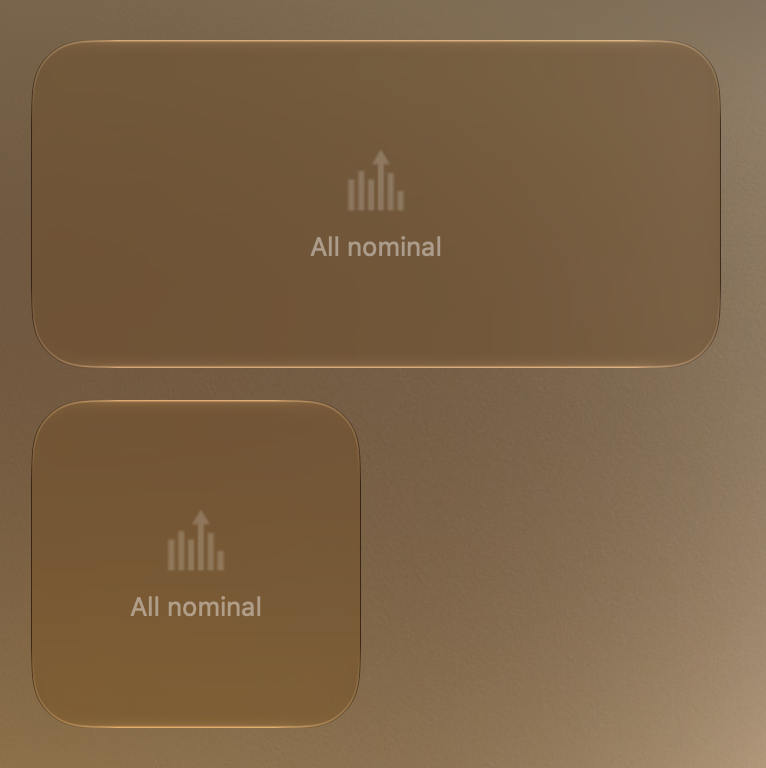
The ambient widget is a calm desktop widget that stays quiet when your Mac is behaving and only speaks up when something actually needs your attention. Most of the time it shows a dimmed Anomalous mark above the words All systems nominal — deliberately easy to ignore. If you have paused monitoring, it reads Monitoring paused instead. There are no gauges, no ticking numbers, and no red badges to check.
The widget comes to life only when Anomalous has confirmed a real, high-confidence anomaly worth surfacing. In that state it shows the offending process name, a one-line plain-English summary of what is going on, and a small safety-tier badge. The badge pairs an icon with a word —
, , or — so severity is never carried by color alone.Two extra markers appear when they apply. If a problem you already handled came back materially worse, the widget adds a Returned, worse label. If more than one anomaly is active at once, it keeps a single focused card and notes + N more in the menu bar, pointing you to the menu bar app for the rest.
Under the hood
The nominal view renders whenever there is no top card or activeCount is 0 (Widget/Sources/AnomalousWidget.swift:80-96). The anomaly view renders only when status.topCard exists and status.activeCount > 0 (:73-78). The tier badge maps tier 1 to a green check "Safe", tier 2 to an orange triangle "Caution", and anything else to an info circle "Info", each with an accessibility label of the form Status: <word> (:141-153). The top card carries processName, kind, summary, safetyTier, conditionKey, and returnedWorse, built from the first active unresolved anomaly (AcknowledgmentStore.swift:290-323; AppState.swift:1449-1468).
Sizes & placement
The widget supports two sizes: small and medium. The small size is a glanceable status marker with room for a slightly longer summary. The medium size has room for the same card plus two inline action buttons — Snooze 1h and Normal for me — that appear when an anomaly is showing. These are the same acknowledgment verbs offered on the app's anomaly card, so you can handle something without opening the app.
You can place the widget on your desktop or in Notification Center, wherever a WidgetKit widget can live on macOS. Because it stays dim and silent by default, it sits comfortably alongside your other widgets without demanding attention.
Separately, on recent macOS versions, Anomalous also adds two Control Center controls: a Monitoring on/off toggle and a Run Scan button. These let you pause or resume detection and trigger an immediate scan without opening the app.
Under the hood
Only systemSmall and systemMedium are declared as supported families (Widget/Sources/AnomalousWidget.swift:64). The small family omits the action buttons and allows up to three summary lines; the medium family allows two lines plus the buttons (:117, :123-135). The Snooze and acknowledge buttons invoke SnoozeAnomalyIntent (1h) and AcknowledgeAnomalyIntent for the top card's conditionKey (:126-133; SharedIntents.swift:216-277). The Control Center controls are a ControlWidgetToggle bound to ToggleMonitoringIntent and a ControlWidgetButton bound to RunScanIntent (:15-22, 158-192). A code comment notes the ControlWidget API requires the newer macOS SDK, so the Control Center toggle and scan button are only available on sufficiently recent macOS versions; the desktop status widget itself works on standard WidgetKit (:156).
How it updates
The widget does no work of its own. It reads the latest snapshot of what Anomalous already knows and simply draws it. The main app writes a small status file each time it runs a detection tick, then tells the system to redraw the widget. Between those writes the widget costs nothing — no CPU, no battery — which is exactly the behavior a quiet, always-on monitor should have.
Everything the widget reads stays on your Mac. It looks at one small local status file — process name, a plain summary, a few counts, and whether monitoring is on — and never fetches anything from the network. See privacy for how Anomalous keeps analysis on-device.
Under the hood
The provider's timeline returns a single entry with refresh policy .never; the app pushes reloads on state change rather than the widget scheduling them (Widget/Sources/AnomalousWidget.swift:47-51). On each detection tick the app writes a SensorStatus JSON — schemaVersion, updatedAt, monitoringEnabled, activeCount, quietCount, watchedProcessCount, topCard — atomically to status.json in the shared App Group container 7JQGQ7CRH8.bot.anomalous.sensor, then calls WidgetCenter.shared.reloadAllTimelines() in publishWidgetStatus() (AppState.swift:1472-1476; AcknowledgmentStore.swift:287-387). That publish runs at several points including each scan tick (AppState.swift:509, 849, 1135, 1331, 1519).
Because the widget and Control Center run in a sandboxed extension process that cannot touch the app's live state, any action you take there is written as a signed command into the App Group queue for the app to drain. The App Group is writable by any same-user process, so those commands are treated as untrusted: each must carry a valid HMAC signature over a Keychain-held shared key and a fresh nonce, and snooze durations are clamped to at most a day, before the app acts on them (SharedIntents.swift:43-61; AppState.swift:1478-1484; AcknowledgmentStore.swift:416-435).
Adding the widget
Adding the ambient widget uses the standard macOS widget flow. Once Anomalous is installed and running, the widget is available in the gallery like any other.
- Right-click an empty area of your desktop and choose Edit Widgets, or open Notification Center and scroll to the bottom to Edit Widgets.
- Find Anomalous in the widget gallery.
- Choose the small or medium size. Pick medium if you want the inline Snooze 1h and Normal for me buttons.
- Drag it onto your desktop or into Notification Center, then click Done.
To add the Control Center controls on a supported macOS version, open Control Center's edit view, choose Add a Control, and pick the Anomalous Monitoring toggle or Run Scan button.
Anomalous is open source. The sensor app that ships the widget lives at anomalous-mac, and the public detection data lives in the anomalous-corpus repository — it may still be private today, but PRs are welcome. If the widget behaves unexpectedly, see the FAQ.