
Install & first run
Download the signed, notarized app, drag it in, and let it learn your Mac. Optionally enable system-wide monitoring via the privileged helper.
Requirements
Anomalous runs on macOS 26 (Tahoe) or later, on Apple Silicon. The download is a signed, notarized disk image of about 3 MB. The free tier needs no account — you can install it and use detection, baselines and the anomaly report without signing up for anything.
An account is only involved later, if you choose to use paid cloud triage. See Accounts, tokens & Get Help.
Download & install
Download the disk image from anomalous.bot, then:
- Open the
.dmg. - Drag Anomalous into your Applications folder.
- Launch it. It lives in your menu bar and says nothing until it has something worth saying.
Because the app is Developer ID–signed and notarized by Apple, Gatekeeper opens it without the “unidentified developer” warning. That same signing is what later lets the optional system-wide monitoring turn on with a single approval instead of a password.
First run & the learning period
The first time you launch, a one-time Welcome window appears and comes to the front. It introduces three things and asks you to decide, rather than burying them in Settings:
- System-wide monitoring via the privileged helper — one approval in System Settings, never a password.
- Contributing anonymous anomaly signatures to the shared knowledge map (opt-in).
- Looking up unknown process names (opt-in).
None of these is required. You can click Get Started and proceed with the helper off and both toggles as they are — they are informed defaults, not a gate. Each choice links to its own help page so you can read exactly what it does first: see Privacy & what leaves your Mac and The discovery engine.
After that, Anomalous needs a little time before it starts judging. It watches quietly to learn what is normal for your Mac before it will call anything unusual — so a brand-new install stays silent while it establishes baselines. How that works is covered in How your baseline is learned.
Enable system-wide monitoring (optional)
By default, Anomalous watches your own apps — everything running under your user account. To also watch system daemons like dasd and WindowServer, it uses a small privileged helper.
When you click Enable system-wide monitoring, macOS shows a one-time approval under System Settings › Login Items & Extensions. Approve it once and the helper runs — no password prompt. Because macOS doesn’t notify the app when you flip that switch, Anomalous checks the status for a couple of minutes so the button flips from “Approve…” to “On” as soon as you approve.
Reading the menu bar
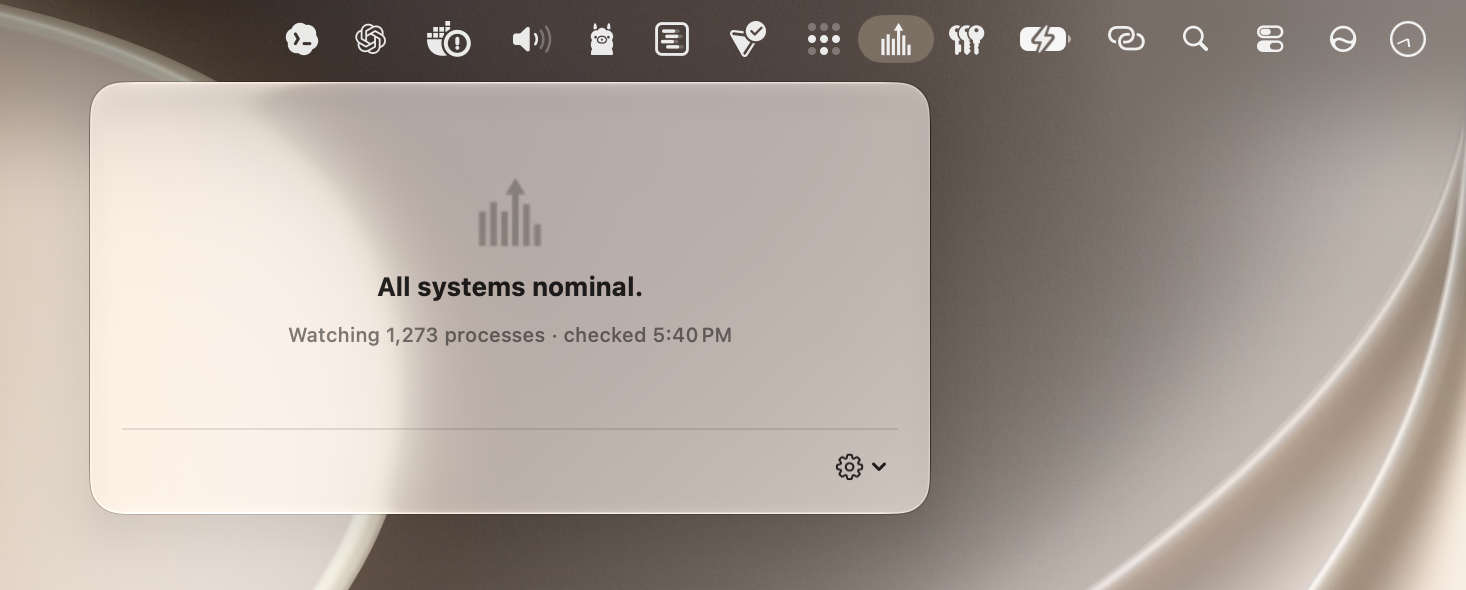
Anomalous has no Dock icon and no windows to manage — it is a menu-bar app on purpose. The icon is the whole interface:
- A quiet, monochrome mark that blends into your menu bar means nothing is wrong.
- A red spike means a genuine anomaly was detected — click it to open the popover and read the diagnosis card.
Click the icon any time to open the popover. When all is well it simply reports “All systems nominal.” along with how many processes it is watching and when it last checked. Housekeeping — Check for Updates, Settings, and Quit — lives behind the gear menu in the popover’s footer.
Under the hood
The app sets LSUIElement so it has no Dock presence and runs as a MenuBarExtra. The calm icon is a template image the system tints to match your menu bar; the active state swaps to a full-color original image so the red survives the system’s monochrome tinting. The Welcome window is shown once, gated on a stored hasCompletedOnboarding flag, and force-activated because accessory apps otherwise open windows behind whatever is frontmost. The helper is registered with SMAppService.daemon, which is why a signed, notarized build can install it with an approval rather than a password. Updates run in the background via Sparkle.
Next: read how the whole loop works in How it works: detect → judge → act → show.